Start Menu Modifier, have the Start screen on the Desktop in Windows 8


Of programs for Windows 8 Start Screen dedicated to the new Microsoft operating system they are coming galore, some very interesting, others less so. Start Menu Modifier that allows you to connect desktop and Start screen of Windows 8 in a nice and original. Using Start Menu Modifier you get a sort of split screen in above or below the Desktop of Windows 8 (depending on your preferences) you can display the Start Screen with all its live tiles. In this way, it becomes possible to start programs, search for files
and do other things in the Start screen without leaving the Desktop.

A solution "intermediate" which we believe is perfect for those who are still loyal to the Start menu in Windows 7 but they are doing
everything possible to settle the interface Metro.

The application takes in effect replaces the Start Screen in full screen and you can recall not only through the hot corner in the bottom left but also by Chamrs Bar and customizable keyboard shortcuts.

You can set all the main program window, which should be performed with administrator privileges ignoring the advice of the SmartScreen Filter. In short, all you need to do to get this Start Screen in half Desktop Windows 8 launch Start Menu Modifier, choose to have the bar with the Start screen up or down using the appropriate drop-down
list and click the OK button. There is also the option to start the program automatically when Windows starts and boxes to set keyboard shortcuts, as I mentioned before.

If you are interested in the program, the download link is below. Of course, all free and no-install. We we tested it successfully on Windows 8 RTM 64-bit.

DOWNLOAD | Start Menu Modifier


Fotor, a rich image editor now also available for Windows 8


From what Windows 8 has been immersed in the market the Windows Store, the marketplace for the new operating system from Microsoft, is going to get rich, day after day, varied and interesting applications, many of which are already available for platforms.

In this regard, today let's take a look at a totally free resource, already familiar in the eyes of the users of devices based on Android and iOS platforms and dedicated to all those who are looking for an effective means by which to modify and embellish photos and images.

This is, in particular, of Fotor, a rich image editor compatible with Windows 8 (both 32-bit and 64-bit) and Windows RT that lets you apply filters to their photos of various types, and adding edges and using a variety of effects including the Tilt-Shift.

The application is also including 1-Tap function that allows you to rapidly improve the quality of an image without having to manually change the brightness, contrast and saturation, or even going to act on the various checks and various items attached the software.

When you start the application is displayed a screen from which you can choose to import a picture and then edit it or, alternatively, whether to go directly to the interface for editing.

When a photo is loaded all the instruments to make various changes are displayed on the right side of the window, as well as also shown in the screenshot of this example at the beginning of this post, the image, instead, goes to occupy the left section and the central one.

When you finish editing the image can then be saved in JPEG, BMP, PNG, TIFF.
Download | Fotor


Change the color and thickness of the window frame in Windows 8


Not everyone likes the standard color scheme of Windows. Fortunately, the system allows you to easily change the color of the window, and does in automatic mode, selecting the predominant colors wallpaper. We look at ways to change the color of the window in Windows 8, and explain how to change the thickness
of the window frame.


Color

Automatic change with wallpaper
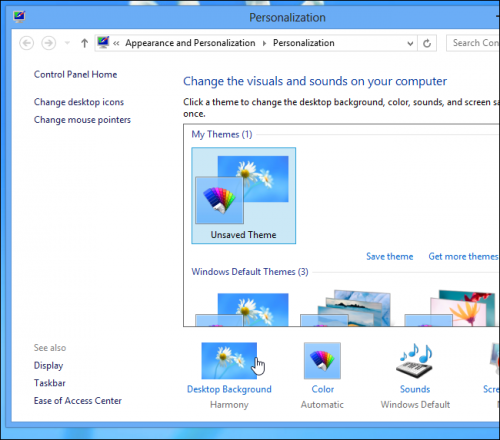
Blue color of the window, which is set to Windows 8 by default, is actually a result of the fact that this color predominates in the default wallpaper. You can change the wallpaper in the same way as we did in Windows 7, or right-click on the desktop and select the context menu Personalize.


At the bottom section, select Desktop Background and install either one of the preset options, or wallpaper from your own collection.


Windows will automatically choose the dominant (in her opinion) as a color tint windows, however, in the case of a colorful picture results can be unpredictable.

Hands

That is why sometimes it is easier to change the color manually. Click on the section to the right of Color Desktop Background. Here you can select one of the preset colors, set the flow rate and other parameters.


Other utilities

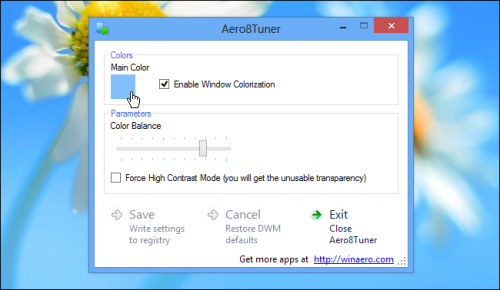
If you mess around with the sliders in the menu system does not really want, you can install the free utility Aero8Tuner, with which you can create and save color schemes, and quickly switch between them.

The thickness of the frame


Register

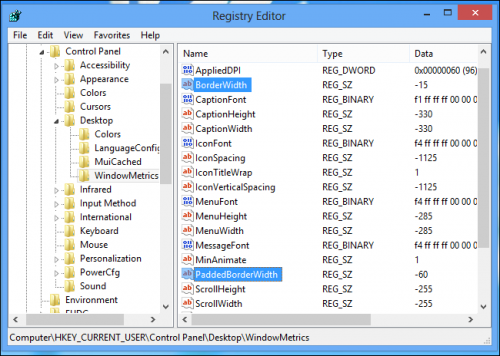
Familiar commands run regedit Windows registry and go on this way:
HKEY_CURRENT_USER\ControlPanel\Desktop\Windowmetrics
Here we are interested in two parameters-BorderWidth and PaddedBorderWidth. By default, correspondthese values ​​ to the -15 and -60.


ofTo make the frame as small, change the values ​​these two parameters to 0. Changes to take effect, you must log onto the system.


Other utilities

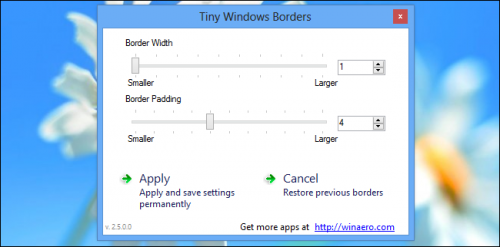
If you go into the registry does not want it, you can download the free utility Tiny Window Borders. This application does not require installation and can adjust the thickness of the frame with the help of two sliders.


In this case, the changes will take effect
immediately after you click Apply.

Please click ads:


GUIDE FIVE THINGS MORE CUMBERSOME IN WINDOWS 8


System for desktop computers to bring a little
'innovation and revitalize the IT market sinking deeper into crisis. Many complain, however, the usability of this new interface, lacking specific experience with classical computers. And it is precisely this aspect that we're going to occupy today, we will look at five things that are less intuitive in the new version of Windows 8 just released on October 26, obviously having a computer
without a display touch since many new laptops do not possess new and of course it would be uncomfortable to use on a desktop.

WINDOWS 8 INTRODUCES A NUMBER OF
INNOVATIONS THAT CAN MAKE IT MORE
SIMPLE, FAST AND STRAIGHTFORWARD, BUT NOT ALWAYS. HERE ARE FIVE THINGS LESS INTUITIVE.

1. TO DISPLAY THE TABS (TABS) IN INTERNET EXPLORER 10
Windows 8 comes with a new version of Internet Explorer, or the 10 that promises to increase the performance and particularly introducing the full-screen mode in Windows 8 UI. In Internet those of you who do not open multiple pages Simultaneous and if you have a touch screen you will be quite uncomfortable simulate a "swipe" from the top down to show the tabs. Here's a quick shortcut to overcome the problem: just press the key Windows + Z.

Tab of Internet Explorer in Windows 8


2. CHANGE "TAB" BROWSER
As before, the Browser is one of the applications that we use most frequently of our operating systems, with Windows 8 and if you do not want to complicate your life to simulate crazy gesture with the mouse, the shortcut CTRL + TAB will help you to change faster the card you are viewing without
them first appear on the screen.


3. CLOSE THE APP WINDOWS 8 UI
With the new Start Screen and applications Windows 8 UI will definitely do this question "But as I close this app?". There is the usual red "X" in this case and in the tablet, or touch panel devices with just drag, literally, the application from top to bottom.
With mouse and keyboard it gets more complicated but Microsoft will "help" thus making the cursor a little hand flat that simulates the act. Microsoft, however, says that leaving them open does not reduce performance, as the app is suspended a few
seconds after they are put in the background, not consuming CPU cycles and freeing up RAM when needed (thanks to Marco for pointing this out).

Metro applications, as I close?


4 -WHAT PROGRAMS ARE RUNNING?
As for the applications that run on the desktop have the same old task bar and convenient for applications in Windows 8 UI there is a bar or a container where visible at all times keep an eye open applications, you
need to call this bar with a light swipe from left to right. The shortcut Alt + Tab will likely be a lot faster. Alternatively bringing the mouse in the upper left we can move to the last app open and with a swipe down on the left edge view all open app.

The new task bar of Windows 8 UI


5. AT WHAT POINT IS THE BATTERY?
Surely if you have a tablet or a laptop you know that sometimes you have to check the battery life, and even though this is another improvement of Windows 8, the autonomy will never be infinite. The small icon next to the time the battery will always be present but only in desktop mode, if you're in the Start
screen or in an app, you should go to the bar Charms, after which you will see a popup in the bottom of the screen to the left with the time, date and other information including the battery. This bar is called by another swipe, this time from right to left, but for those who do not like to recommend the use of
these methods the shortcut Windows + D.

How to display battery status on Windows 8 UI

These were just some of the shortcuts that can save lives (we speak of having almost hidden the off button?) Unless you have a computer with touch, something that many should be without on your regular computer, but with many touchpad multi-touch gesture to make the screen can be made even​​ on itself.


HOW TO RESTORE THE START BUTTON ON WINDOWS 8


Until now many have sprung up on the web software that imitate or simulate a new menu is similar in functionality to the old Start, but recently it was discovered that Microsoft has not removed entirely from explorer menu, but hid it to make room novelty.

Remove it would require a rewrite more complicated and lengthier the famous explorer.exe. Then we go to see how to reactivate already nostalgic for menu
shortcuts also in the new version presented today 's most popular operating system in the world and sold

  • First of all Equip this zip file at this link;
  • Go into your hard drive to install windows (it is marked by its logo and is usually C:\) and create a folder named StartIsBack;
  • Remove the newly created folder the contents of the zip file you downloaded to the first point;
  • Depending on the version of the system installed run the appropriate installation file, so I NSTALL_X86 if you have Windows 8 32-Bit or INSTALL_X64 if you have the 64-bit;
  • Restart the computer to apply the changes ... ;
  • You can remove it at any time by launching the executable named UNINSTALL.

The result is the real Start menu that owners of Windows 7/Vista know, for the most is a chance that Microsoft will not remove unless new versions (Windows 9).


10 of the most interesting features of the application Visio


To exit the Windows 8 from Microsoft, most programs have a new design and many interesting features. Remained by and easy
to use program Visio, designed to work with
charts.


The updated Visio has ten cool features:
1. Duplicate pages

In order to duplicate a page, you need to right-click the page and select the menu item «Duplicate». The second page will appear next to the current one. Users can also perform this task by opening the tab «Insert» and selecting from the drop down menu «New Page» point «Duplicate This Page».


2. Changing Shapes

A new function «Change Shape» quickly change form one or more shapes. However, their content, and other characteristics remain unchanged. This is defined by the corresponding button that appears in the context menu. You simply select the items you
want, click on it, right click and choose any suitable shape.


3. A comparison of the size

When users change the size of any shape, Visio automatically displays the dynamic grid. With it, you can change all the elements to size.


4. Pressing Alt suspend binding

Automatically associated to the position of the figures used for the distribution of figures in relation to each other or on the scale of the ruler, grid lines, grid lines and dots. However, if you need to specify the location for the unusual shape should hold
down the Alt key and drag the mouse anywhere in the document.


5. Improved selection of figures

In a new Visio has become much easier to view and select additional items to the menu «More Shapes».
It is located in the left corner of the screen and provides access to a large number of forms of various functions.


6. Insert figures

If you copy the shape and paste it in another part of the diagram, Visio will automatically place a copy in the center of the current view. This improvement saves time when the insertion point is far away from the original form.


7. Simplified connect shapes

Connect one shape to another has become much easier. The system automatically determines which way the user has selected, allows the incorporation of multiple forms on the fly.


8. Tips on choosing figures

Auto-Connect feature allows you to instantly build a whole chart. Clicking on the arrow to any edge pieces, you can choose one of the recommended forms.


9. Alignment lines

When you move the figures there is a special line, which will help to build a flat chart.


10. Exact sizing

A similar line appears when resizing adjacent shapes, and helps set the same size for different elements.


Try a new Visio in action is to install the preview-version at this link.


Complete list of "hot keys» Windows 8


Windows 8 is not all to the taste, though, Microsoft's aggressive policy in the promotion of the new operating system always results enslave the world she desired result.

We have to get used to ... In the blog, the Windows 8 appeared a valuable list of "hot keys" , which are, apparently, all imaginable and not imaginable operation.

The liberty to copy, because many useful:
Win - Switching between the start screen and the latter is running

Win + C - Calling the right pop-up panel (at the same time shows the current time)

Win + I - call options panel

Win + H - Calling the panel "Sharing"

Win + K - Calling the panel "Devices"

Win + Q - Access to search by application

Win + F - Access to the file search

Win + W - Access to search by Default

Win + P - Configure a second monitor

Win + Z - Call for applications toolbar vin8

Win + X - Call the menu system utilities

Win + O - Lock screen orientation

Win +. (Dot) - Add application to the right

Win + Shift +. (Dot) - Add application on the left

Win + V - Show all active notifications

Win + Shift + V - Show all active notifications in reverse

Win + PrtScn - Make a screenshot of the screen and automatically save it in the folder "Screenshots
"
Win + Enter - Start Narrator

Win + E - Open the folder "My Computer"

Win + R - Open the dialog "Run"

Win + U - Open Ease of Access Center

Win + Ctrl + F - Open the dialog "Find Computers"

Win + Pause / Break - Open page "System"

Win + 1..10 - Run, enshrined in the taskbar at the appropriate place

Win + Shift + 1..10 - Starts a new instance of the program laid down in the taskbar at the appropriate place

Win + Ctrl + 1..10 - Call the last active window of the program laid down in the taskbar at the appropriate place..


Win + Alt + 1..10 - Calling the navigation menu of the program laid down in the taskbar in place

Win + B - Select the first icon in the system tray.

Go to the next icon is done by hand. Pressing the «Enter» - its opening Win + Ctrl + B - Calling the program, showing a notification in the system tray

Win + T - Toggle between elements of the taskbar

Win + M - Minimize all windows

Win + Shift + M - Restore the minimized windows

Win + D - Show / Hide Desktop

Win + L - Lock computer

Win + Up Arrow - Expand the current window

Win + Down Arrow - Maximize / Restore the current window

Win + Home - Minimize all but the current window

Win + Left Arrow - Fix the window to the left of the screen

Win + Right Arrow - Fix the window on the right side

Win + Shift + Up Arrow - Increase the window from the top to the bottom of the screen

Win + Shift + Left / Right Arrow - Send window to another monitor

Win + F1 - Run Windows Help


PageUp - Scroll the "Start" forward

PageDown: Scroll the "Start" back

Ctrl + Esc - Switching from home screen to the last active application

Ctrl + Mouse wheel - look at the startup screen "above"


Alt - Show hidden menu applications

Alt + D - Select the address bar

Alt + P - Show preview pane in Windows Explorer

Alt + Tab - Toggle forward between open windows

Alt + Shift + Tab - Switch back and forth between open windows

Alt + F - Close the current window. Open shutdown dialog from the desktop

Alt + Spacebar - menu for the current window

Alt + Esc - Switch between running programs in order of their start

Alt + Enter - Open the properties of the selected element

Alt + PrtScn - take a screenshot of the active window and place it on the clipboard

Alt + Up Arrow - Up one level in the Explorer

Alt + Left Arrow - Go to the previous folder

Alt + Right Arrow - Go to the following folder

Shift + Delete - Delete an item passing Cart

Shift + F6 - Toggle back between controls in a window or dialog

Shift + F10 - Call the popup menu for the selected item

Shift + Tab - Switch back and forth between the elements in a window or dialog

Shift + click - the group of selected sequences

Shift + click on the taskbar button - Start a new copy of the program

Shift + Right-click on the taskbar button - Call the context menu item

Ctrl + A - Select all items

Ctrl + C - Copy selected items

Ctrl + X - Cut selected items

Ctrl + V - Paste the selected items

Ctrl + D - Delete selected items

Ctrl + Z - Undo

Ctrl + Y - Redo action

Ctrl + N - Open a new window in the Explorer

Ctrl + W - Close the current window in the Explorer

Ctrl + E - Choose the search bar in Explorer

Ctrl + Shift + N - Create a new folder

Ctrl + Shift + Esc - Open Task Manager

Ctrl + Alt + Tab - Open panel to switch
between windows

Ctrl + Alt + Delete - Access to the lock screen

Ctrl + click - Select multiple individual items

Ctrl + click and drag an item - Copy item in the same folder

Ctrl + Shift + click and drag an item - Create a shortcut item in the same folder

Ctrl + Tab - Toggle forward between tabs

Ctrl + Shift + Tab - Switch between tabs back

Ctrl + Shift + click on the button in the task bar - Start a new copy of the program from the Administrator


F1 - Display Help

F2 - Rename the file

F3 - Open Search

F4 - Display drop-down list in the address bar of Windows Explorer

F5: Refresh the screen

F6 - Switch between the window or dialog

F7 - Display history of commands in the command line

F10 - Show hidden menu bar

F11 - Toggle full-screen mode

Tab - Toggle forward between the elements in a window or dialog

PrtScn - Take a screenshot of the entire screen and place it on the clipboard

Home - Jump up in the open window

End - Go down through the open window

Delete - Delete the selected item

Backspace - Go to the previous folder in Explorer. Move the cursor up one folder in the Open or Save dialog boxes.

Esc - close the dialog box


Num Lock Enabled + Plus (+) - Display the contents of the selected folder

Num Lock Enabled + Minus (-) - Close the selected folder

NumLock Enabled + asterisk (*) - Expand all
subfolders of the selected folder

Press the Shift five times - enable \ disable
StickyKeys


How to communicate with your friends from Windows Live Messenger to Skype


Now users of the Microsoft Messenger can easily get in touch with your friends through Skype. In its version 6.0 for Mac and Windows the opportunity to enter into the program, using the data from the
account Microsoft.


Messenger users enough to download the latest
version of Skype
, and all their friends and colleagues are already in your contact list. "We want to focus our efforts on making things easier for our
customers and at the same time - to constantly
improve the overall experience of their use," - says
the president of the Microsoft Skype Tony Bates
(Tony Bates). According to him, the company will
cease to support the Messenger in the first quarter
of 2013 in all countries except China - where the
program is still available.

Clicking on Skype, users will receive a number of new features, including:
- Support for a wide range of devices, including the iPad and tablets based on Android;
- Instant messaging, video calls, calls to landline and mobile phones via a single application;
- The opportunity to show his screen interlocutor;
- Video calls on mobile phones;
- Connect with your friends on Facebook via video calls;
- Group video.

Here is a quick start guide Messenger, wishing to
communicate in Skype:

So, to transfer your contacts to VoIP-program, you
must first download it and run. On the login page,
select the option to login on the account Microsoft.
After that, the program will ask whether you have an
account in Skype. Users of both services can easily
combine both accounts.

After completion of the installation in Skype can see
immediately contact your friends. Clicking on the list,
you can display contacts from only one service. Start
chat with any of the contacts can be one click.
The developers promise that the next few months
will be working hard to make the transition easier for
users Messenger Skype. To enable them to learn
more about VoIP-application, as early as this year to
send special needs.

By the way, Skype client pre-installed on smartphones running Windows Phone 8, and is available for download in the app store for Windows 8.


Windows 8: alphabet gestures


1. One click on a tile to launch the necessary application.


2. Slide the left edge of the screen, you can "pull" the list of running processes.


3. To close a program, you need to swipe your finger from the top of the screen to the bottom.


4. Multi-touch display allows you to increase or decrease the items in browsers and mixing and dilution of the two fingers.


5. To call the settings panel the application should hold your finger on the bottom of the stairs.


6. Sliding gesture from the right edge of the screen opens the system tray of Windows 8 along with a button
"Start".


More Rumors on Windows 8


A news leak of company secrets Mountain View software launched for major improvements that Windows 8 (this is the name of the next major release of Microsoft) will be compared with predecessor, 7.

From what is rumored to be Windows 8 introduce at least 5 new features: full support for tablets, face recognition, a store for the application, a method initiate a rapid and quick tool for reinstall the operating system.

More Rumors on Windows 8


Support for the tablet (which Microsoft likes Slate calls it) the program will be implemented only for models with x86 architecture. It is expected that the market for the tablet will continue in the coming year with positive trends.

This device is usually possible use of multimedia content, access to the social networking, organizational letters and many other functions. face recognition is not a feature in almost all future PCs and tablet and will allow access without entering password.

Among the new features will be integrated into in the operating system for an application store exactly as is done for all main competitor, where you can buy both desktop and mobile, very similar Phone with Windows Marketplace.

A method is much faster start, the project have started with Windows 7, which using a device called Action Center software identifies the most contribute to slow down your system when startup.

Finally, of particular interest, the function allows to easily install reinstall the operating system without losing data personal. These are just a few fixes that Microsoft will introduce the next version of operating system.


An innovative feature of network security for Windows 8


Currently, we have two main sources of news about the release of Windows 8. Employees from Microsoft, already talking about the features of the release long-awaited new, during the interview, speech, as well as on the official sites from Microsoft, in addition to issuing a bid Microsoft career job.

An innovative feature of network security for Windows 8


Latest job search show information about the new features that Microsoft intends to implement in Windows 8. Israeli servers Microsoft and business tool - search engineer units to develop software for each group to access team called NAP (which probably stands for Network Access Protection). NAP «currently develops innovative network security features for Windows 8, which will be part integral part of Windows 8, at both the client side and servers. "


Sundries article Copyright © 2010 LKart Theme is Designed by Mobile